
Note: Verified buyers are entitled to free updates until the next year’s version is released with updated tax brackets. This transition will occur in Q1. Message the Etsy shop owner for a link to download the latest version.
QUICK START GUIDE
Check out the Quick Start Guide to get started.
BACKGROUND INFO
In order to optimize results, the spreadsheet will maintain a consistent tax rate across each year starting with the Roth Conv Start Year until forced otherwise by RMDs, etc.. To do this, it adjusts the Roth IRA conversion amount until the income matches the amount entered by the user in the Income Target field. If there are no other sources of income, the Adj Income Target field will equal the Roth conversion plus the IRA withdrawal. To ensure optimal amounts, both of these values are calculated automatically and displayed in the “Roth Conv” and “IRA Withdrawal” columns on the Main worksheet.
Control Panel

TOOL TIPS
All the controls in the Control Panel have tool tips. Hover over a button or list box for a short explanation of what that control does. The Control Panel must be selected for the tool tips to appear.
CREATING YOUR FIRST SCENARIO
Create your first Scenario by editing the values in the active scenario set on the Scenario Set worksheet. Next, modify the light blue columns in the Main worksheet to represent any additional income or one-time expenses. To see your values reflected in the table on the Main worksheet, select one of the five Scenarios and click the Load Scenario to Main button. This will make the selected scenario the active scenario and populate the Main worksheet with the active scenario data.


FINDING THE OPTIMAL ROTH CONVERSION (disabled in Basic version) To find the optimal roth conversion for the active scenario, click the Run Roth Optimization button. This will test every Income Target value from 0 to $1M at $10k intervals for the six interest rates shown in the column headers on the Roth Conversion Optimizer worksheet for the selected Scenario. It will display the results in both a table and chart. The column headers can be modified if different rates of return are desired. The table assumes all the returns (Savings, IRA, & Roth IRA) are the same. Once the optimal Income Target value is identified, the user can enter and load that value back in the active scenario and view it in the Main worksheet.

See the Roth IRA Conversion Optimization Feature Guide for more information.
MONTE CARLO ANALYSIS (disabled in Basic version)
To run a Monte Carlo simulation, click the Run Monte Carlo button. This will randomize each year’s returns around the value entered for the IRA Retirement Return in the active scenario. The default number of simulations is 500. The default standard deviation is 15%. Both of these can be changed if desired in cells J8 and J9 on the Scenario Sets worksheet. A histogram showing the Monte Carlo results will be generated on the Monte Carlo worksheet.

See the Monte Carlo Simulation Feature Guide for more information.
CREATING YOUR FIRST SCENARIO SET
Create your first scenario set (Scenarios 1 – 5) by editing the top table on the Scenario Sets worksheet.
SAVING SCENARIO SETS
To save a scenario set, enter a name for the scenario in the textbox in the Scenario Set Manager and click the Save button. This will save a copy of the active scenario set on the Scenario Sets worksheet to the bottom of the list of tables on the same worksheet. If a copy already exists with the same name, it will overwrite that copy instead of making a new one.
LOADING A SAVED SCENARIO SET
To load a specific scenario set, select the desired item in the list box and then click the Load button. The Load button will copy the appropriate scenario set to the table on the top of the Scenario Sets worksheet, making it the active scenario set.
REFRESH CHARTS WORKSHEET
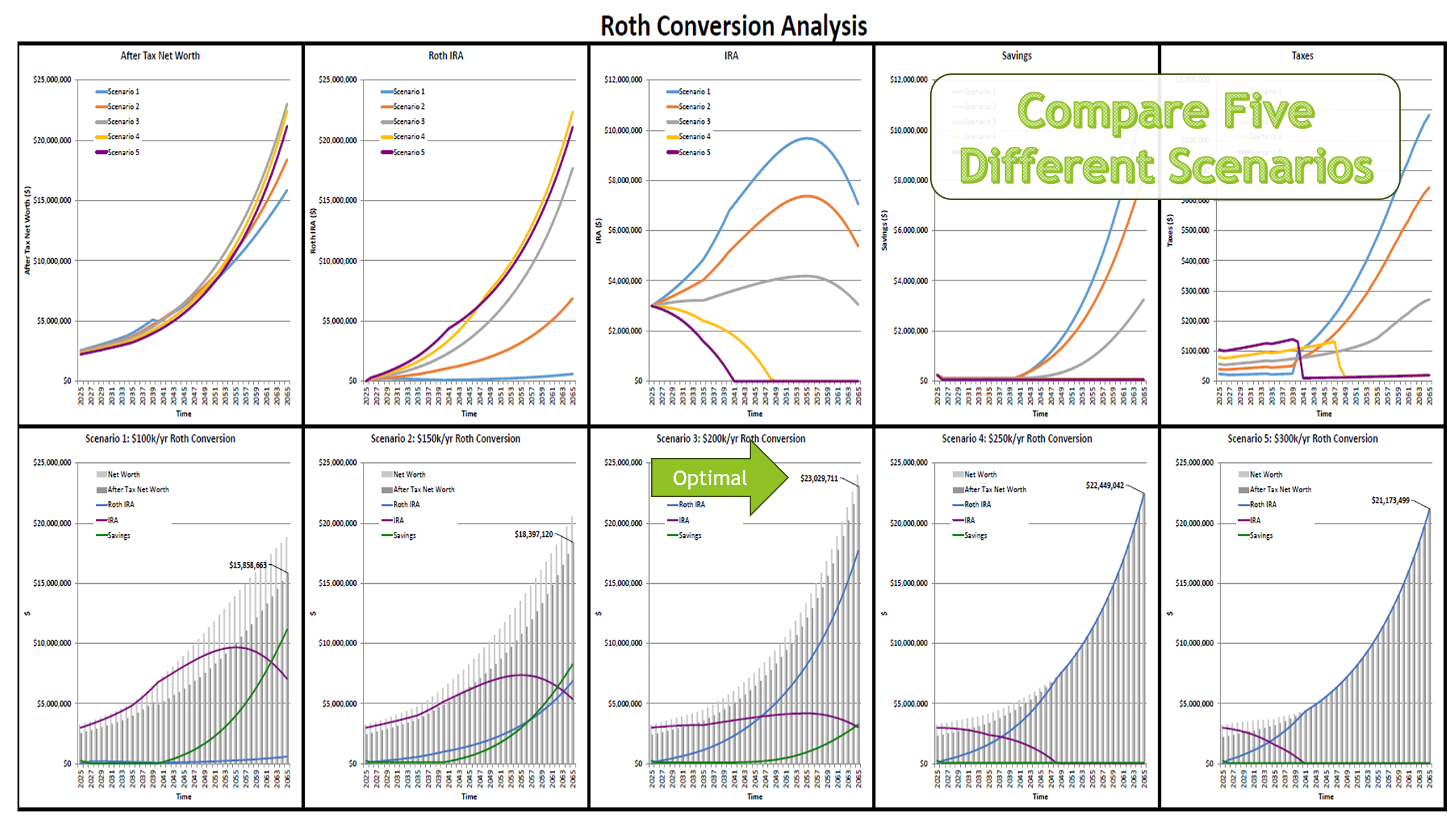
After loading a scenario set, you need to click the Refresh Charts button to see the new scenario set displayed on the Charts worksheet. The active scenario set does not have to be saved in order to refresh the charts.
DELETING SCENARIO SETS
To delete a scenario set, select it in the list box and click the Delete button. This will delete the selected scenario set.
IMPORTING AND EXPORTING
The Export button will save all your scenario sets to a separate Excel file. The Windows version will allow the user to select the export location. The Mac version will automatically save it to the Desktop. The Import button will load all the scenario sets from a previously exported file or previous version of the spreadsheet (v3.3a and later). Importing will overwrite any saved scenarios sets currently in the sheet. The primary purpose of these buttons are to allow you to move your scenario sets to a new version of the file.
See the Effortless Upgrades post for more information.
PDF BUTTONS
These buttons allow you to quickly save the corresponding worksheets to a PDF file. The Windows version will allow the user to select the pdf location. The Mac version will automatically save it to the Desktop.
REMOVE SHEET PROTECTION (disabled in Basic version)
This button will allow you to temporarily remove the sheet protection. With sheet protection removed, you can customize the sheet if desired and better analyze the formulas. Note: Using this button to make customizations is for advanced users only. There is no support for customized workbooks.
Scenario Set Settings

- Description: Type the name or description of this scenario.
- Starting Age: This should be your current age
- Ending Age: This is how far you want the model to go—typically this is how long you expect to live.
- Starting Year: Put the current year (2025).
- Starting Savings Amount: This is the value of all your non-retirement financial assets. Typically, this is a combination of savings accounts and brokerage accounts. If you’re filing status is Married Filing Jointly, combine you and your spouse’s assets here.
- Starting IRA Amount: This is how much you have in your IRA or 401k. If you’re filing status is Married Filing Jointly, combine you and your spouse’s assets here.
- Starting Roth IRA Amount: This is how much you have in your Roth IRA or Roth 401k. If you’re filing status is Married Filing Jointly, combine you and your spouse’s assets here.
- Income Target: This sets the desired income target. It will be adjusted for inflation. For the first pass, enter zero here. Use the Roth Conversion Optimizer to find the optimal value to enter here and then put that value back in this spot. See the note on the “Roth Conversion Optimizer” page for a detailed explanation.
- Roth Conv Start Year: This is the year you want the Roth conversions to start.
- Starting Annual Expenses: This is the amount of your living expenses.
- Savings Return: This is the amount of return you expect on your Savings.
- IRA Retirement Return: This is the amount of return you expect on your IRA. It also sets the “Mean” for the Monte Carlo analysis.
- Roth IRA Return: This is the amount of return you expect on your Roth IRA.
- Social Security Benefit: This is the amount you expect to get in your first year collecting Social Security
- Social Security Start Age: This is the year you expect your Social Security payments to start.
- Inflation Rate: This is the rate of inflation. Your expenses will increase by this amount each year.
- Tax Bracket Inflation Rate: This is the rate at which you expect the tax brackets will increase each year.
- Filing Status: Select “Single”, “Head of Household” or “Married Filing Jointly”
- State: Select your state from the pulldown.
- Scenario: This field is not editable.
Additional Settings
The Additional Settings box is in cells I3 to J13 on the Scenario Sets worksheet.
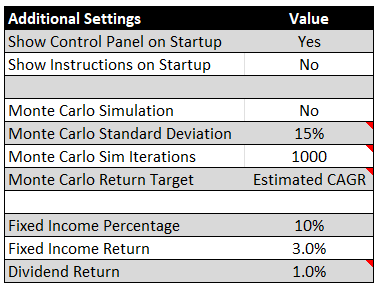
- Show Control Panel on Startup: Check this box if you want the Control Panel to display when you open the file.
- Show Instructions on Startup: Check this box if you want the Instructions to display when you open the file. The Instructions are located on the Community Site
- Monte Carlo Simulation: For advanced users only. The spreadsheet will automatically set this to “Yes” for a Monte Carlo simulation and then set it back to “No” when it’s done. If a user wants to see what random returns looks like on a single iteration, they can enable this manually and view the results on the Main worksheet.
- Monte Carlo Standard Deviation: For advanced users only. The standard deviation is the dial that sets how much uncertainty your Monte Carlo simulation injects into the model. The default is 15% which is aligned with the S&P 500. The user can increase this value for more volatility and decrease it for less.
- Monte Carlo Sim Iterations: This is how many iterations the Monte Carlo function will run. Each iteration will generate a new set of random returns. The default is set to 500, but 1000 or more is recommended for better results. Increasing the iterations will increase the time it takes to generate the report. For example: it could take 30 minutes to run with 1000 iterations.
- Monte Carlo Return Target: For advanced users only. This allows you to choose the return targeted by the Monte Carlo simulation. It defaults to “Estimated CAGR” which will result in a median CAGR close to your rate of return (RoR) input setting. Alternatively, if you want the median arithmetic mean, instead of CAGR, to match your RoR input setting, then you can switch this to “Arithmetic Mean”. In both cases, you will see a similar volatility drag.
- Fixed Income Percentage: This is where you set the percentage of your non-Retirement Savings that you want to be in Fixed Income. See the LTCG Post for more information.
- Fixed Income Return: This is where you set the rate of return for your Fixed Income. See the LTCG Post for more information.
- Dividend Return: This is the percentage of the the equities in your savings account that you expect to get as a dividend. This amount will be added to the Fixed Income column and taxed as normal income.