
The main interface of the Roth IRA Conversion Optimizer is intentionally clean and approachable. Users will spend most of their time setting up Scenarios on the Scenario Set worksheet and viewing the results on the Main worksheet. Beneath that simplicity lies a sophisticated, tax-aware engine that calculates:
- Separate IRAs, RMDs and Social Security for Married Filing Jointly
- Non-taxable IRA basis depletion
- Medicare Premiums and IRMAA brackets
- Federal and state tax brackets

For users who want to see this additional detail, there are four hidden worksheets. Users can “Unhide” these worksheets if desired.
📄 Worksheet 1: Separate IRAs, RMDs and Social Security for Married Filing Jointly
Designed for Married Filing Jointly scenarios, this sheet isolates the IRA balances, RMD requirements, and Social Security projections for both individuals to ensure tax accuracy. This sheet is also where contributions to retirement accounts can be entered for all filing types. Key data includes:
- Annual IRA balances
- RMD calculations
- Social Security benefit projections
- Roth & T-IRA contributions

This worksheet is essential for accurately modeling tax implications and timing of distributions for married couples.
The values for the “Self” are set in the Scenario Set on the Scenario Sets worksheet. The values for the “Spouse” are set in the Settings worksheet as shown below.
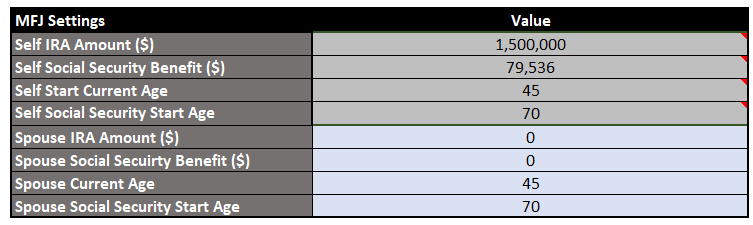
Important nuances:
- Married Filing Jointly couples often have different ages, meaning their RMDs, which are specific to each individual’s IRAs, start at different times. This staggered timing affects the overall distribution strategy and tax planning.
- Similarly, couples may receive different Social Security benefit amounts, which can begin at different ages or times, impacting cash flow and tax considerations.
- HOH or Single filers should only use the “Self” columns for their contributions.
Why it’s useful: Anyone who wants to audit or understand how the Optimizer handles IRAs, RMDs, and Social Security for married filers can see the detailed calculations here.
📄 Worksheet 2: Non-taxable IRA Basis Depletion
This sheet tracks the after‑tax basis inside an IRA over time. It shows:
- Annual IRA balances
- Distributions
- Taxable vs. non‑taxable portions
- How basis is consumed as withdrawals occur
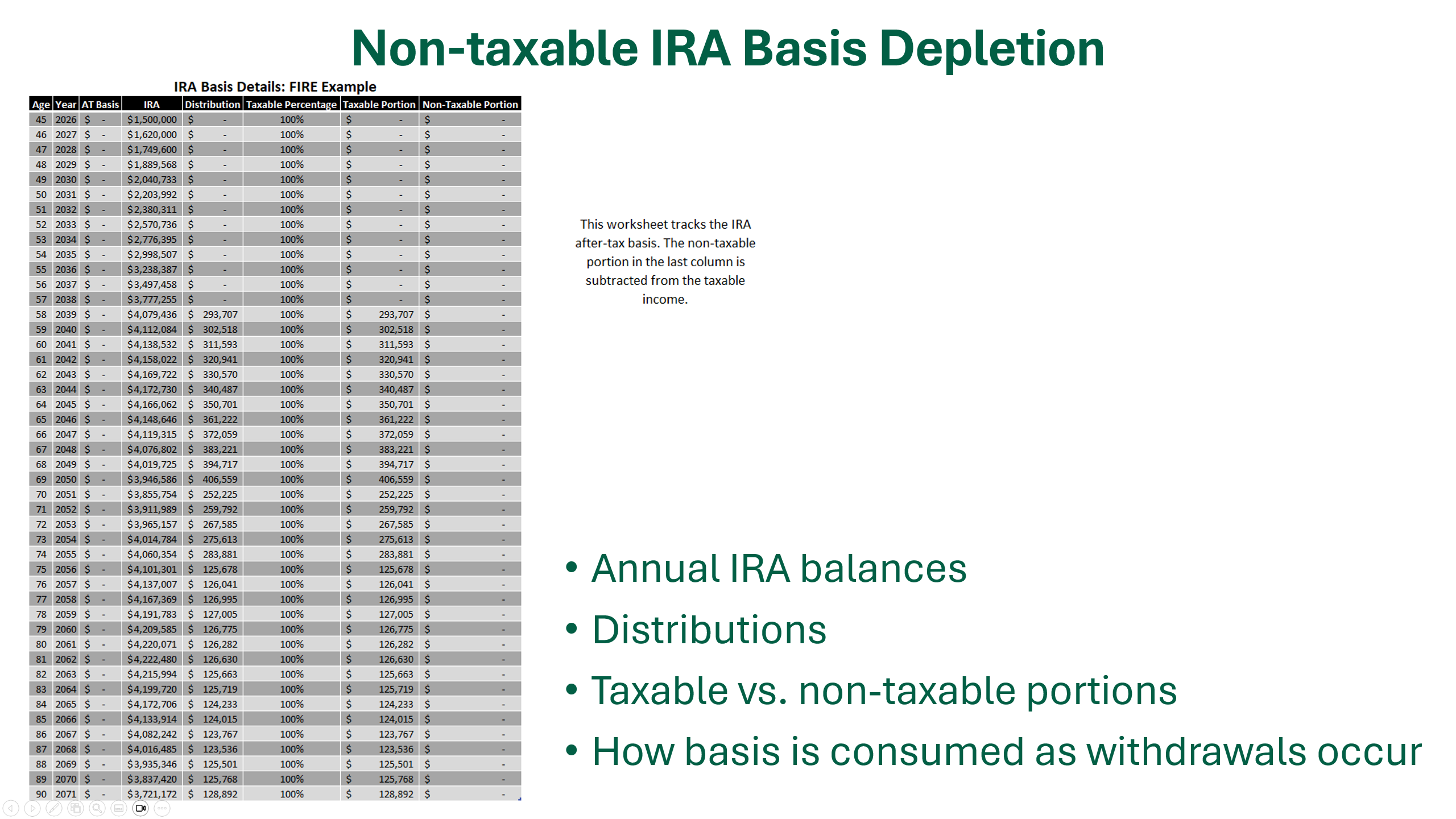
This is especially important for users who have made non‑deductible IRA contributions or executed backdoor Roth conversions. The Optimizer uses this sheet to correctly calculate the taxable portion of each distribution, ensuring the model aligns with IRS Form 8606 rules.
The IRA after-tax basis can be entered on the Settings worksheet as shown below.
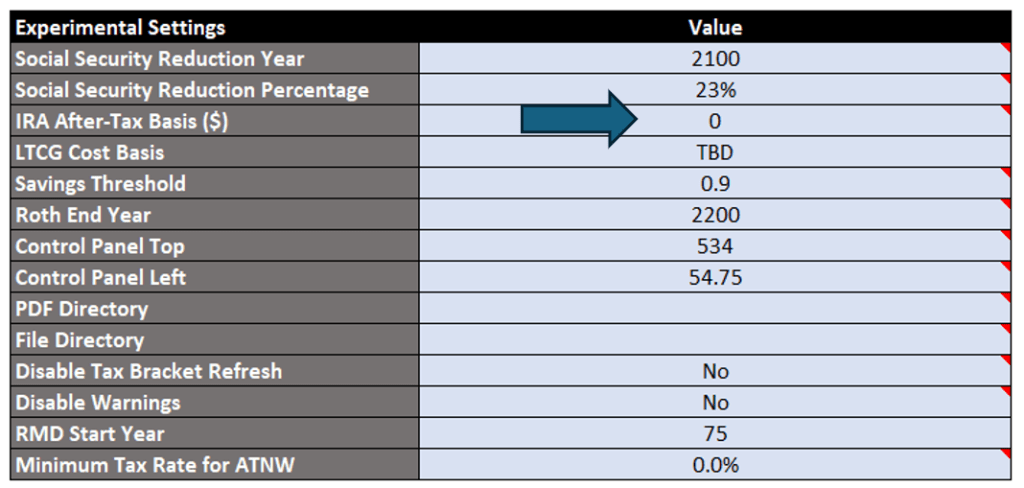
Why it’s useful: Anyone who wants to audit how the Optimizer handles basis depletion can see the year‑by‑year math here. It’s also a great educational tool for understanding how basis interacts with RMDs later in life.
📄 Worksheet 3: Medicare Premiums and IRMAA Brackets
This sheet contains the full 2026 Medicare Part B and Part D premium and IRMAA tables. It includes:
- Income brackets for single and married filers
- Part B premiums and IRMAA surcharges
- Part D premiums and IRMAA surcharges
- Total monthly and annual costs
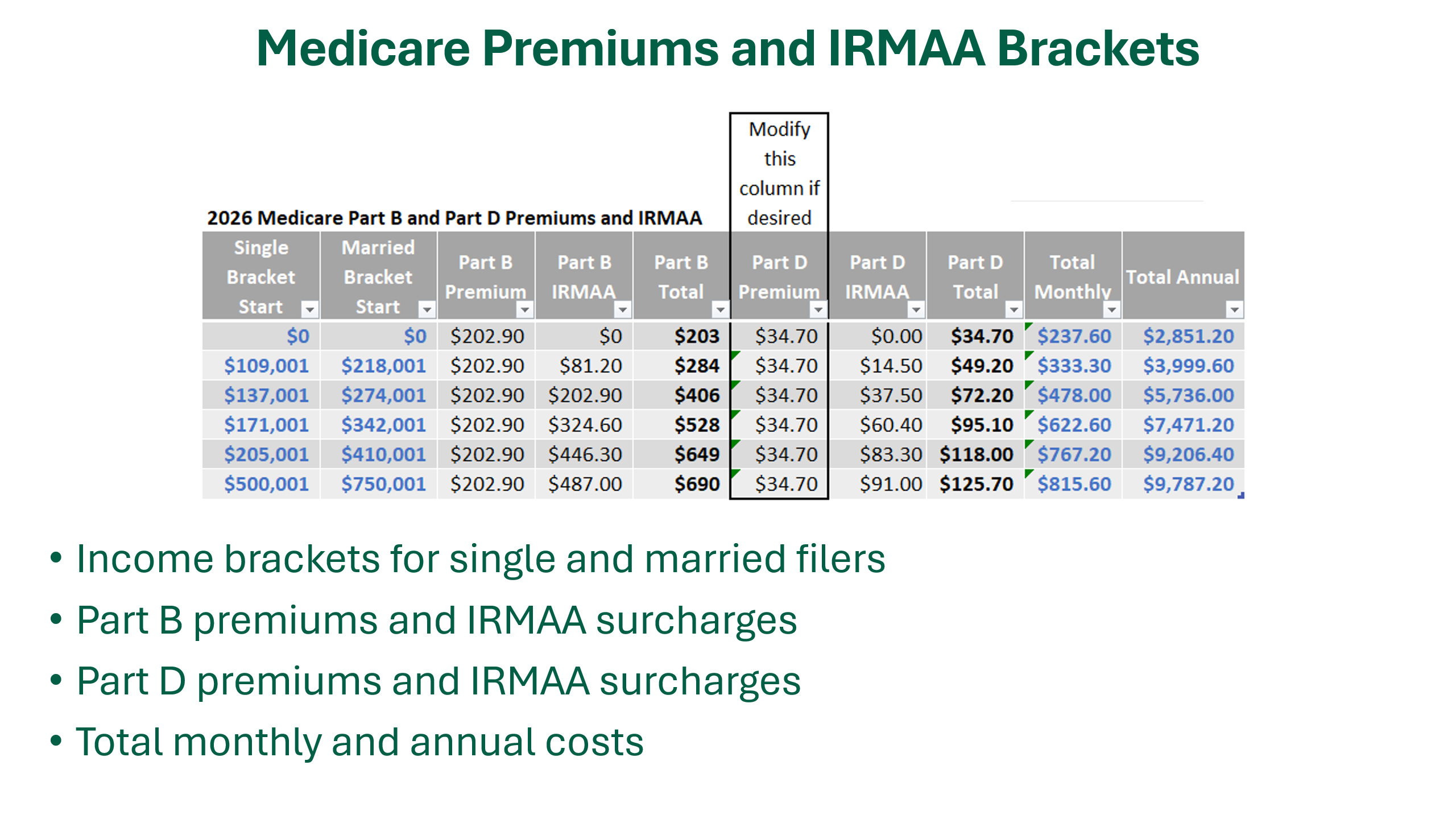
The Optimizer uses these tables to calculate the true after‑tax impact of Roth conversions, since conversions can push income into higher IRMAA tiers.
The Part D premium can be edited directly in this table if other values are desired.
Why it’s useful: Users can see exactly how their projected income interacts with Medicare costs. Financial advisors can use this sheet to explain IRMAA cliffs to clients.
📄 Worksheet 4: Federal and State Tax Brackets
This sheet stores the federal and state tax bracket structures based on the filing status and state selected in the Startup Values Manager. It includes:
- Federal tax rates and brackets
- State tax rates and brackets
- Editable bracket mode for exploring other tax scenarios
See Tax Brackets blog post for additional details and features.

The Optimizer uses this sheet to calculate state and federal taxes and to determine how Roth conversions interact with marginal rates.
To modify the brackets, set “Disable Tax Bracket Refresh” to “Yes” in the Settings worksheet and then edit the table(s) directly on the Tax Brackets worksheet.

Why it’s useful: State and federal taxes can dramatically change the optimal conversion strategy. This sheet lets users audit or customize their tax bracket structures—especially helpful for states with unusual rules.
🔓 How to Unhide These Worksheets
We hide these four worksheets to keep the main workflow streamlined and easy to use. But if you want to explore them:

On Windows or Mac (Excel Desktop)
- Right‑click any worksheet tab.
- Select Unhide…
- Choose the sheet you want to reveal.
- Click OK.
To Re‑Hide a Sheet
- Right‑click the sheet tab.
- Select Hide.
🧠 Why These Sheets Matter
These hidden worksheets make the Optimizer:
- Transparent — the behind-the-scenes detail is visible and auditable.
- Accurate — tax and IRMAA logic is based on real bracket tables.
- Customizable — advanced users can modify the federal/state brackets and the Medicare part D premium.
- Streamlined — moving complex calculations to background sheets keeps your primary workspace clutter-free.
Ready to see it for yourself? You can explore these features in the latest version of the Roth IRA Conversion Optimizer.


