
The Roth IRA Conversion Optimizer has four blue columns on the Main worksheet and four blue columns on the MFJ Detail worksheet. These are the only cells you can edit on these sheets without unlocking the spreadsheet, and each one contains example formulas that can be customized to fit their specific needs.
Are your blue-column edits disappearing? This is caused by the Excel table auto-fill feature. If you replace the formulas with static values, be sure to clear all the formulas from the column first; otherwise, Excel’s auto-fill will restore the original formulas and overwrite your entries. If you modify the formulas instead, make sure to fill or copy the updated formula down the entire column so every row uses the new logic.

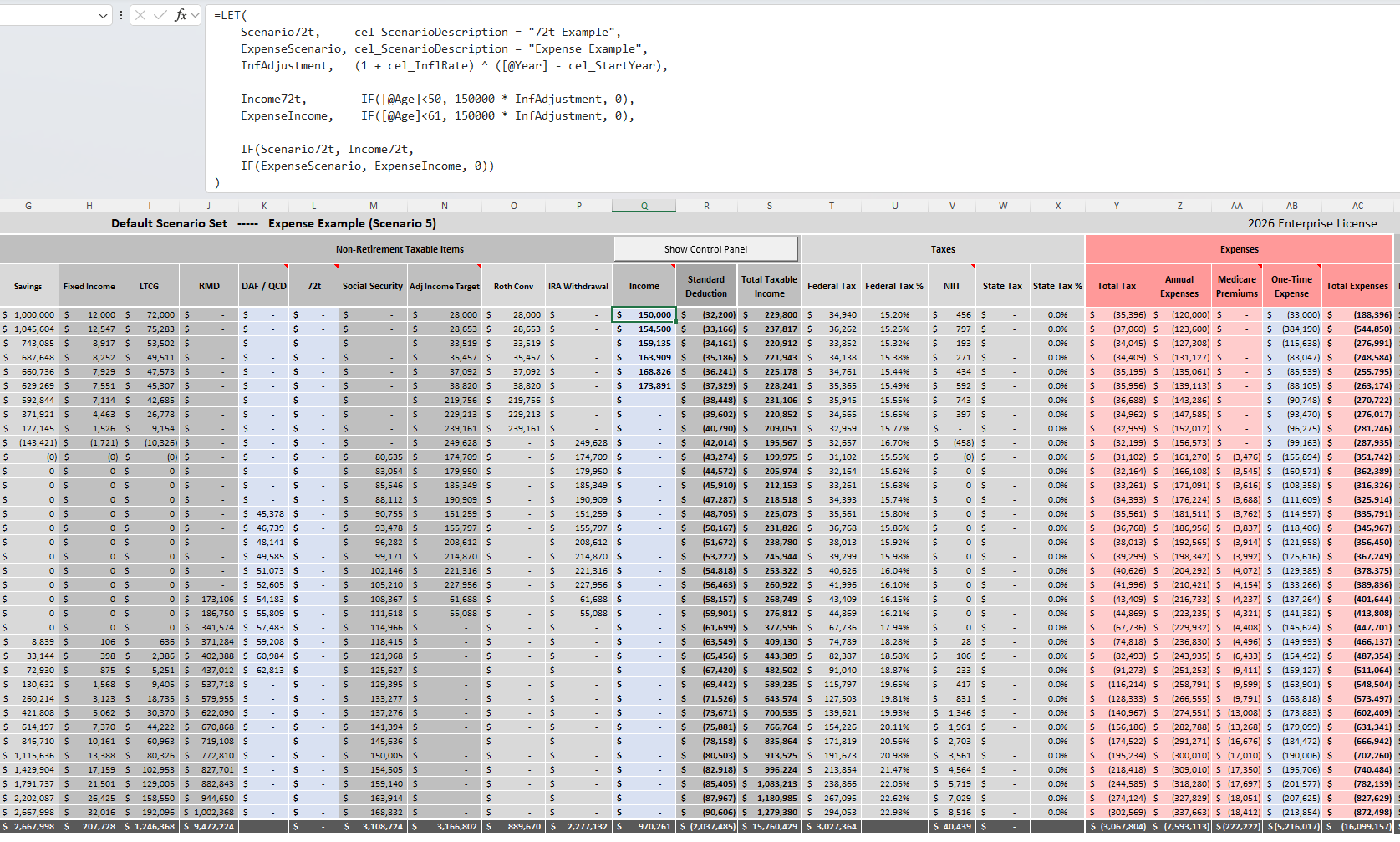
The Optimizer has the following blue columns.
- DAF / QCD
- 72t
- Income
- One-Time Expense
- Self IRA Contribution
- Self Roth Contribution
- Spouse IRA Contribution
- Spouse Roth Contribution
DAF / QCD Column
This column is for Qualified Charitable Distributions (QCDs) and Donor‑Advised Funds (DAFs). It allows you to model charitable strategies with the same precision as Roth conversions, RMDs, and tax‑efficient withdrawal sequencing. Below is the default formula for this column.
Are your blue-column edits disappearing? See the note on how to prevent Excel’s auto-fill from overwriting your values.
See DAF / QCD Blog Post for more information on this column.
=LET( MyScenario, cel_ScenarioDescription = "Expense Example", InfAdjustment, (1 + cel_InflRate) ^ ([@Year] - cel_StartYear), DAF, IF(AND([@Age] > 68, [@Age] <= 70), 30000 * InfAdjustment, 0), QCD, IF(AND([@Age] > 70, [@Age] <= 80), 30000 * InfAdjustment, 0), IF(MyScenario, DAF + QCD, 0))
The example formula above uses the LET function to add inflation-adjusted $30,000 charitable strategies across specific age windows. Here’s a breakdown of what it’s doing:
- Variable Definitions: It assigns clean, readable names like
InfAdjustment,DAF, andQCDto complex calculations. This keeps the formula organized and prevents it from becoming a “giant wall of text.” - Inflation Scaling: The
InfAdjustmentvariable ensures your target charitable impact maintains its purchasing power over time, compounding based on your global inflation rate assumptions. - Donor-Advised Fund (DAF) Logic: The
DAFvariable sets a specific pre-RMD window: if your age is greater than 68 but less than or equal to 70, it triggers a $30,000 (inflation-adjusted) tracking metric. Outside that window, it defaults to $0. - Qualified Charitable Distribution (QCD) Logic: The
QCDvariable handles the next phase of life: if your age is greater than 70 but less than or equal to 80, it applies the $30,000 inflation-adjusted amount specifically designated for direct-from-IRA gifting. - Scenario Toggle: Finally, the formula checks
MyScenario. If the “Expense Example” scenario is active in your Control Panel, it sums and displays the relevantDAF + QCDvalue; if not, the column stays at $0 so your baseline model remains clean.
72t Column
This column can be used for the 72(t) SEPP withdrawals or Rule of 55 withdrawals. Anything put here will be taken out of the IRA and included as income (like RMDs) but will not be subject to the 10% penalty for early withdrawals.
Are your blue-column edits disappearing? See the note on how to prevent Excel’s auto-fill from overwriting your values.
See Early‑Withdrawal Modeling Blog Post for more details on this column.
=LET( MyScenario, cel_ScenarioDescription = "72t Example", InfAdjustment, (1 + cel_InflRate) ^ ([@Year] - cel_StartYear), Withdrawal, IF(AND([@Age]<60, [@Savings]<50000), 100000 * InfAdjustment, 0), IF(MyScenario, Withdrawal, 0))
The example formula above uses the LET function to add an inflation adjusted $100k withdrawal when the savings account value is under $50k and your age is under 60. Here’s a breakdown of what it’s doing:
- Variable Definitions: It assigns names like
InfAdjustmentandWithdrawalto specific calculations. This prevents the formula from becoming a “giant wall of text.” - Inflation Scaling: The
InfAdjustmentvariable ensures your withdrawal amount keeps pace with the inflation rate set in your global assumptions. - Conditional Logic: The
Withdrawalvariable looks for a specific window: if you are under Age 60 and your savings are below $50,000, it triggers a $100,000 (inflation-adjusted) payout. Otherwise, it returns $0. - Scenario Toggle: Finally, the formula checks
MyScenario. If the scenario is “active” in your Control Panel, it displays the withdrawal; if not, the column remains at $0 so it doesn’t interfere with your other models.
Income Column
The blue “Income” column on the Main worksheet is a placeholder for all other sources of taxable income. For the years you are still working, you should put your W-2 Box 1 wages (gross income minus 401k contributions) from your job in this column. Once you retire this typically goes to zero. Anything you put in this column will be added both to your taxable income and to your savings.
Are your blue-column edits disappearing? See the note on how to prevent Excel’s auto-fill from overwriting your values.
=LET( MyScenario, cel_ScenarioDescription = "72t Example", InfAdjustment, (1 + cel_InflRate) ^ ([@Year] - cel_StartYear), Income, IF([@Age]<50, 150000 * InfAdjustment, 0), IF(MyScenario, Income, 0))
The example formula above uses the LET function to add an inflation adjusted $150k in income up to age 50. Here’s the breakdown:
- Scenario Assignment:
MyScenariolinks this specific column to the “72t Example” toggle in your Control Panel. If that scenario isn’t active, the column remains at $0. - Dynamic Inflation: The
InfAdjustmentvariable calculates the cumulative inflation from your Start Year to the current row’s Year, ensuring the $150,000 buying power is maintained over time. - Age-Based Trigger: The
Incomevariable contains the core logic: if the age in the row is less than 50, it calculates the inflation-adjusted income. Once you hit 50, the income stops ($0). - Clean Output: The final step checks if the scenario is active. If it is, it displays the calculated
Income; otherwise, it stays blank.
One-Time Expense Column
The One-Time expense column can be used to make one-time additions or reductions to your net worth. Expenses (automobile, house, etc.) are added as negative numbers and increases (inheritance, etc.) are added as positive numbers. Positive numbers entered in this column will not be taxed (like the Income column).
Are your blue-column edits disappearing? See the note on how to prevent Excel’s auto-fill from overwriting your values.
=LET( MyScenario, cel_ScenarioDescription = "Expense Example", InfAdjustment, (1 + cel_InflRate) ^ ([@Year] - cel_StartYear), CapGainTax, IF(AND([@Year]>2025, [@Year]<2029), -33000 * InfAdjustment, 0), HealthCare, IF(AND([@Year]>2026, [@Year]<2038), -40000 * InfAdjustment, 0), NewCar, IF( [@Year]=2027, -100000 * InfAdjustment, 0), SecondHouse, IF( [@Year]=2027, -200000 * InfAdjustment, 0), SecondHouseExp, IF( [@Year]>2027, -36000 * InfAdjustment, 0), MaxGift, IF( [@Year]>2035, -40000 * InfAdjustment, 0), Value, CapGainTax + HealthCare + NewCar + SecondHouse + SecondHouseExp + MaxGift, IF(MyScenario, Value, 0))
The example formula above uses the LET function to add inflation adjusted expenses in specific years, defining each expense as a variable and then summing them up at the end. Here’s a description of how it’s doing it:
- Scenario Assignment:
MyScenarioensures these expenses only appear when you have the “Expense Example” toggled on in your Control Panel. - The Expense Variables: We’ve defined specific triggers for different life events:
- CapGainTax: Triggers a -$33,000 (adjusted for inflation) hit between 2026 and 2028.
- HealthCare: A recurring -$40,000 expense starting in 2027.
- NewCar & SecondHouse: Significant one-time outlays specifically assigned to the year 2027.
- MaxGift: A legacy/gifting strategy that “turns on” after 2035.
- The Calculation (
Value): This variable simply adds all the above expenses together. If a year doesn’t meet the criteria for a specific expense, that variable is $0, so it doesn’t affect the total. - Final Output: If the scenario is active, it displays the sum of all applicable expenses for that year; otherwise, it returns $0.
Contribution Columns
These columns are dedicated to modeling retirement account contributions for both you and your spouse across traditional IRAs and Roth IRAs. It includes four distinct tracking columns: Self IRA Contribution, Self Roth Contribution, Spouse IRA Contribution, and Spouse Roth Contribution.
By utilizing these columns, you can plan exactly how much you and your spouse intend to save during your working years, or model standard “catch-up” contributions as you approach retirement. Any amount entered here will be directed into its associated retirement account, ensuring your ongoing retirement savings habits are accurately reflected in your long-term wealth and conversion models. Below is the default formula used to automate these contributions.
Are your blue-column edits disappearing? See the note on how to prevent Excel’s auto-fill from overwriting your values.
See Retirement Contributions Blog Post for more details on this column.
=LET( MyScenario, cel_ScenarioDescription = "Expense Example", InfAdjustment, (1 + cel_InflRate) ^ ([@Year] - cel_StartYear), IRAContribution, IF(AND([@Age] >= 55, [@Age] <= 60), 32500, 0), IF(MyScenario, IRAContribution, 0))
The example formula above uses the LET function to automate recurring retirement contributions based on specific age criteria. Here’s a breakdown of what it’s doing:
- Variable Definitions: It assigns clean, readable names like
InfAdjustmentandIRAContributionto specific formulas. This prevents the logic from expanding into a “giant wall of text.” - Inflation Scaling: The
InfAdjustmentvariable tracks cumulative inflation from your Start Year to the current row’s Year, ensuring that your modeled contribution amounts scale realistically over time according to your global assumptions. - Age-Based Eligibility: The
IRAContributionvariable holds the core automation logic. In this example, if your age falls within a specific pre-retirement window (greater than or equal to 55 and less than or equal to 60), it triggers a standard $32,500 annual savings goal. Outside of that age window, it defaults to $0. - Scenario Toggle: Finally, the formula checks
MyScenario. If the “Expense Example” scenario is active in your Control Panel, it applies the calculated contribution to the column; if not, the column stays at $0 so it doesn’t interfere with your baseline model.

